
How to Take Screenshots of Any Content on iOS and iPadOS
Tips for Capturing Overlapping Screenshots
For a quick grasp of the key technique, please watch the short videos on https://www.breezyone.app.
Capture Continuous Content
Breezyone stitches screenshots by spotting where the images overlap and then putting them together in the right spot. So you will need to snap continuous screenshots like the example shown below.
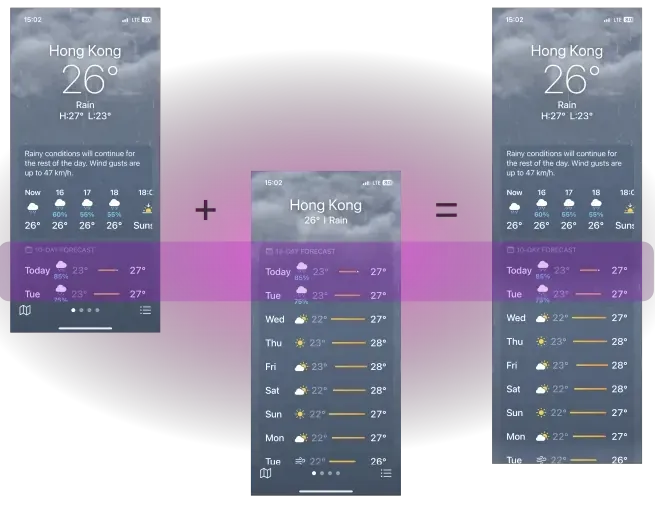
These are the continuous screenshots that can be stitched automatically on Breezyone. There should be some overlaps, around one finger’s width at a minimum, between adjacent screenshots.
Free-flow Contents
Breezyone can stitch any scrollable content that flows in all main directions, plus off-axis deviations for freely scrolled screenshots. For example, when you scroll a map down with some lefts and rights to capture the content, it is perfectly fine to stitch these screenshots as long as they are continuous with overlaps in between.
How to Capture and Stitch Easily
When capturing content, it’s a good idea to keep the scrolling direction consistent, like from top to bottom. This not only looks tidy, but also saves you time because the screenshots are already taken in content order, and that is exactly the order Breezyone needs. So, you can jump straight into image processing without any extra steps. For instance:
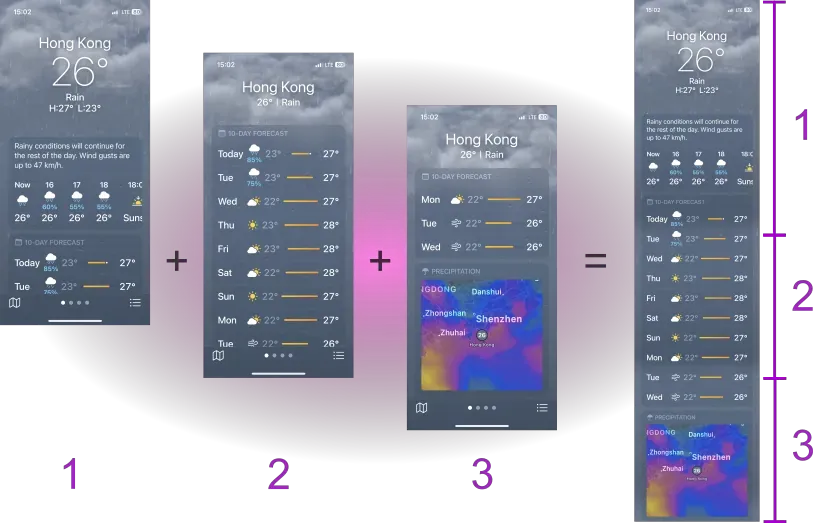
If Breezyone can’t spot any overlaps between the images, it will treat them as separate, non-continuous content and join them together along the edges to make the long screenshot.
🤓 Tip
To ensure that image processing spots the overlaps clearly, it is a good idea to have some identifiable content like text, symbols, or photo features in the overlap area.
Even though the overlaps might seem tiny in some tricky situations, try to capture for more overlap area so that Breezyone can take a closer examination.
Capture Non-continuous Content
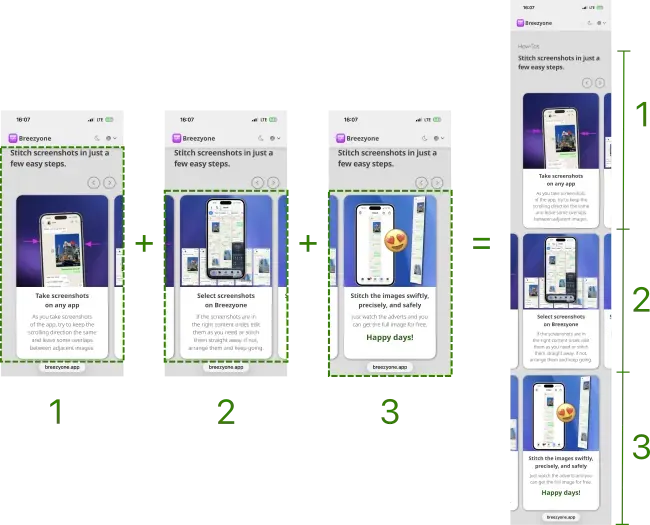
Sometimes there are non-continuous contents where the screenshots are separate and don’t flow together, like video thumbnails, extracts of content, or carousels. In these situations, just capture the content as needed and don’t bother to keep any overlaps.
Breezyone let you edit and join these screenshots, then stitch them with any other continuous screenshots you have into a long screenshot, all in one go, quick and easy.
Here’s an example that illustrates how web carousels are cropped from screenshots and put together.
Version: 1.5.6
Updated: Tue Jun 30 2026 08:00:00 GMT+0800 (Hong Kong Standard Time)