
Home Screen – Selecting Images to Stitch
Tips for Selecting Screenshots in Your Gallery
The screenshot below is taken at Home, where you can browse and select some images for stitching.
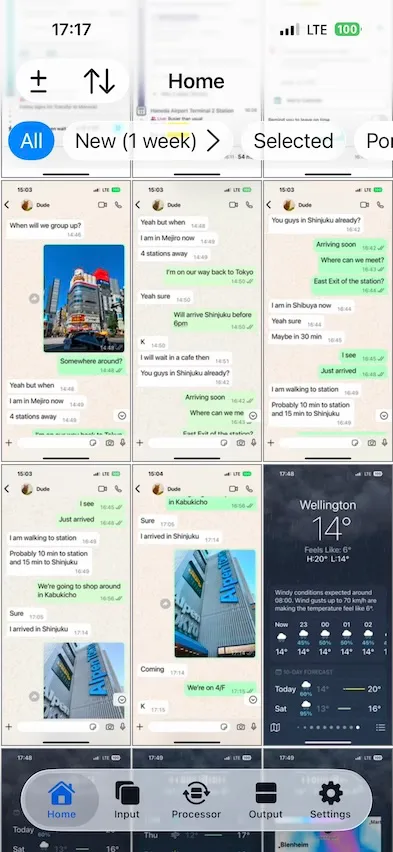
The images you can use are grouped by size, so you can easily browse and select them.
Selecting Images
You can select or deselect images by tapping one or swiping through a few of them. Tap the Select button to make the selection, or the Cancel button to cancel it.
🤓 Tip: Touch and Hold for More Options
Throughout this page, if you see an image or an on-screen button, touch and hold it to open a pop-up menu with advanced actions, position settings, or alternative shortcuts.
1. Top and Toolbar Buttons
These buttons help you manage the photo access, sort images in the image collections, filter collections, and change filtering options.
| Item | Behaviour |
|---|---|
Manage Photos ± Top Button (if any) | Manage permission to access photos. It is available if you allow Breezyone to access only the photos you want. |
Image List ⇅ Top Button | Show the menu options to zoom in and out of the image list, of image filter and image sorting. |
| Filter Toolbar Buttons | Filter images based on the tapped filter button. It is a handy way to pick out related images. |
New › Filter Button | Touch & hold the button to adjust the time interval of this filter. |
🤓 Tip
If there are many images on this page, the image filter can help you browse and select them quicker.
For example, you can use
Newto see only the images that have just been added. You can also use andSelectedto see only the images selected and rearrange their orders.
2. Images in the Image List
Manage your selections directly within the list using gestures and the pop-up menu.
| Action | Behaviour |
|---|---|
| Pinch | Zooms in and out of the image list. |
| Tap | Selects or deselects images in the exact order they are tapped. |
| Swipe | Selects or deselects multiple images in the order your finger swipes. |
| Touch & hold | Opens a pop-up menu to place an image at a specific position, or view the full image content; just views the full image if no images are currently selected. |
You can keep repeating these steps until you’ve selected all the images.
Image Count
The page tab of Input page shows the image count. If it turns red with an exclamation mark, there are issues with the images and you’ll need to tap it to fix.
💬 Remark
If the image count shows
3!, it means that errors are found within these three images.
Version: 1.5.6
Updated: Thu Jul 30 2026 08:00:00 GMT+0800 (Hong Kong Standard Time)